

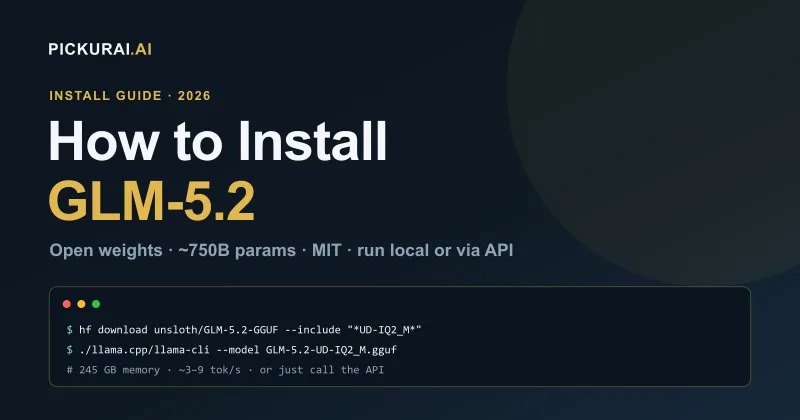
"Installing" GLM-5.2 isn't one thing — it's three, because GLM-5.2 is a roughly 750-billion-parameter open-weight model, not a desktop app. Z.ai released it in June 2026 under an unrestricted MIT license, and it's the strongest open-weights coding model of the year. But its size means the honest first question isn't how to install it — it's where: an API in two minutes, a real local copy only if you own a 256 GB machine, or a GPU cluster for production self-hosting.
This guide walks all three routes with exact, copy-paste commands, and — just as important — tells you which one is actually right for your hardware so you don't spend a weekend downloading 240 GB you can't load. If you just want to use GLM-5.2 today, skip to the API route. If you want it running on your own machine, go to the local route.
Key takeaways
- You cannot run GLM-5.2 on a laptop. Even a 2-bit quant needs ~245 GB of combined RAM + VRAM. A normal laptop or single gaming GPU can't hold it.
- Easiest route (most people): call the API — Z.ai or OpenRouter, OpenAI-compatible, working in ~2 minutes for a few dollars per million tokens.
- Real local route: a 256 GB Mac Studio or a 24 GB-GPU + 256 GB-RAM workstation, running Unsloth's 2-bit GGUF through llama.cpp at ~3–9 tok/s.
- Ollama gotcha:
glm-5.2:cloudis not local — it routes to Z.ai's servers. True local needs llama.cpp + GGUF. - Production route: vLLM or SGLang on ~16×H100 (FP8, ~744 GB of weights), with expert-parallel flags.
- It's free as in open weights (MIT, no regional bans) — but running it at scale isn't free unless you already own the hardware.
First, the Honest Reality: Can You Even Run It?
GLM-5.2 uses a Mixture-of-Experts design — about 40 billion parameters are active per token, but all ~750 billion still have to sit in memory. That's the number that decides everything. Quantization shrinks it, but even the smallest usable quant is enormous by consumer standards. Here's the real memory budget, straight from the people who make the quants:
| Quant | RAM + VRAM needed | Realistic machine |
|---|---|---|
| 1-bit (UD-IQ1_S) | ~223 GB | 256 GB Mac / big workstation. Lowest quality. |
| 2-bit (UD-IQ2_M) | ~245 GB | The enthusiast sweet spot. 256 GB Mac Studio. |
| 4-bit (UD-Q4_K_XL) | ~372–475 GB | Multi-GPU (2×A100 80GB / 4×RTX 6000 Ada). |
| 8-bit (UD-Q8_K_XL) | ~810 GB | Server / GPU cluster. |
| BF16 (full) | ~1.5 TB | Data-center only. |
On a Mac this is unified memory; on a PC you split it across GPU + system RAM with MoE offloading. Need to know what to actually buy? See our on-premise AI server hardware guide and the best PC for AI in 2026.
The takeaway: if you don't already own a 256 GB-class machine, the "install locally" fantasy ends here — and that's fine, because the API route below gives you the full-precision model for pennies. Choose your path:
- I just want to use it → Route 1: the API (2 minutes, any computer).
- I have a 256 GB Mac / big rig → Route 2: local with llama.cpp.
- I'm deploying it for a team → Route 3: self-host with vLLM/SGLang.
Route 1 — Use the API (Easiest, Any Machine)
This is what most people should do. You get the real, full-quality GLM-5.2 without owning a server, and it's OpenAI-compatible, so any tool that speaks the OpenAI API works by changing two lines. Two good providers:
- Z.ai (official): base URL
https://api.z.ai/api/paas/v4, modelglm-5.2(orglm-5.2[1m]for the full 1M context). About $1.40 / 1M input, $0.26 / 1M cached input, and $4.40 / 1M output. - OpenRouter: model
z-ai/glm-5.2, currently cheaper at roughly $0.56 / 1M in and $1.76 / 1M out.
Grab a key from either provider, then call it with the standard OpenAI SDK:
pip install openai

# python
from openai import OpenAI

client = OpenAI(
    api_key="YOUR_ZAI_KEY",
    base_url="https://api.z.ai/api/paas/v4",
)

resp = client.chat.completions.create(
    model="glm-5.2",
    messages=[{"role": "user", "content": "Write a Python function to parse a CSV."}],
)
print(resp.choices[0].message.content)
That's the whole install for most readers. New to API keys and billing? Our beginner's guide to using an AI API and DeepSeek API setup walkthrough cover the same pattern step by step, and if you're weighing this against a monthly subscription, read API vs subscription: which is actually cheaper. You can also sanity-check what a workload will cost on our Token Calculator.
The Ollama trap. You'll see ollama run glm-5.2:cloud and assume it's local. It isn't — the :cloud tag routes your prompts to Z.ai's servers, just like the API above. It's a convenient way to use GLM-5.2, but nothing runs on your machine. For genuinely local inference, you need Route 2.
Route 2 — Run It Truly Locally (llama.cpp + Unsloth GGUF)
If you own a 256 GB Mac Studio (M3/M4 Ultra) or a workstation with a 24 GB GPU plus ~256 GB of system RAM, you can host the weights yourself. The practical path is Unsloth's dynamic 2-bit GGUF run through llama.cpp. Expect roughly 3–9 tokens per second — usable for coding and analysis, not for chat that feels instant.
Step 1 — Download the 2-bit GGUF (~239 GB)
pip install huggingface_hub

hf download unsloth/GLM-5.2-GGUF \
    --local-dir unsloth/GLM-5.2-GGUF \
    --include "*UD-IQ2_M*"
Swap UD-IQ2_M for UD-IQ1_S to get the smaller ~217 GB 1-bit build if you're tight on memory, or a higher quant (UD-Q4_K_XL, UD-Q8_K_XL) if you have the GPUs for it.
Step 2 — Build llama.cpp
apt-get update && apt-get install pciutils build-essential cmake curl libcurl4-openssl-dev -y
git clone https://github.com/ggml-org/llama.cpp
cmake llama.cpp -B llama.cpp/build \
    -DBUILD_SHARED_LIBS=OFF -DGGML_CUDA=ON
cmake --build llama.cpp/build --config Release -j --clean-first \
    --target llama-cli llama-mtmd-cli llama-server llama-gguf-split
On an Apple-silicon Mac, set -DGGML_CUDA=OFF — Metal acceleration is on by default. On an NVIDIA box keep -DGGML_CUDA=ON.
Step 3 — Run it
The simplest launch, with Unsloth's recommended sampling settings (temperature 1.0, top-p 0.95, min-p 0.01):
./llama.cpp/llama-cli \
    --model unsloth/GLM-5.2-GGUF/UD-IQ2_M/GLM-5.2-UD-IQ2_M-00001-of-00006.gguf \
    --temp 1.0 \
    --top-p 0.95 \
    --min-p 0.01
On a PC where the model spills out of VRAM, offload most layers to the GPU and keep the MoE experts on CPU RAM:
./llama.cpp/llama-cli \
    --model unsloth/GLM-5.2-GGUF/UD-IQ2_M/GLM-5.2-UD-IQ2_M-00001-of-00006.gguf \
    -ngl 99 \
    --n-cpu-moe 2
And to stretch context without blowing your memory budget, quantize the KV cache:
./llama.cpp/llama-cli \
    --model unsloth/GLM-5.2-GGUF/UD-IQ2_M/GLM-5.2-UD-IQ2_M-00001-of-00006.gguf \
    --temp 1.0 --top-p 0.95 --min-p 0.01 \
    --cache-type-k q4_1 --cache-type-v q4_1
Prefer a graphical app? LM Studio loads the same unsloth/GLM-5.2-GGUF files with a click-to-run UI — the same weights, no terminal. Either way, one honest caveat: mainline llama.cpp currently falls back to dense attention because GLM-5.2's sparse-attention path isn't supported yet, so real long-context throughput sits below the headline 1M-token numbers.
Controlling reasoning effort
GLM-5.2 ships two thinking modes — High and Max — with Max recommended for complex, multi-step coding. Set it via the chat template, or turn thinking off for speed:
--chat-template-kwargs '{"reasoning_effort":"max"}'
--chat-template-kwargs '{"reasoning_effort":"high"}'
--chat-template-kwargs '{"enable_thinking":false}'
Route 3 — Self-Host for a Team (vLLM / SGLang)
To serve GLM-5.2 to a team at real speed, you run it unquantized (or FP8) on a multi-GPU server with tensor + expert parallelism. In FP8 the weights alone are about 744 GB, so a comfortable minimum is roughly 16×H100 80GB (or 8×B200-class cards); BF16 doubles that to ~1.5 TB before KV cache. The two standard servers:
# vLLM
pip install vllm
vllm serve zai-org/GLM-5.2 --enable-expert-parallel

# SGLang
python -m sglang.launch_server --model zai-org/GLM-5.2 --enable-moe-ep
Both distribute the experts across GPUs and route tokens over NVLink/NVSwitch. Because the endpoint is OpenAI-compatible with function calling, you can point coding agents — Claude Code, Cline, Cursor — straight at your server by overriding their base URL, and get a private, unthrottled coding model. If you don't have a GPU cluster on hand, renting one by the hour from a cloud GPU provider is the usual way teams pilot this before committing capital.
Which Route Should You Pick?
| You are… | Best route | Why |
|---|---|---|
| Just want to try it | API (OpenRouter) | Full quality, pennies, 2 minutes. |
| Privacy / offline enthusiast | Local 2-bit (256 GB Mac) | Weights on your machine, no data leaves. |
| High-volume / team | Self-host (vLLM/SGLang) | Private, unthrottled, cost-efficient at scale. |
| On a laptop | API — full stop | A ~750B model will not fit. Don't fight it. |
Before You Start: Two Caveats
No vision. GLM-5.2 launched text-only — there's no image input, so don't plan a multimodal workflow around it. It's token-hungry. On agentic benchmarks it emits around 43k output tokens per task, more than comparable models, which matters both for your API bill and for local throughput. If coding agents are your use case, GLM-5.2 is a genuinely strong, cheap open alternative — but it competes with tools like GPT-5.5 and Grok Build and Claude's Opus/Sonnet, so it's worth knowing where it wins before you rewire your stack.
The Bottom Line
"How to install GLM-5.2" has a satisfying and an unsatisfying answer, and the honest guide gives you both. The unsatisfying one: you can't run a 750-billion-parameter model on your laptop, and no amount of quantization changes that. The satisfying one: you don't need to — a two-line API call gives you the full model for a few dollars per million tokens, a 256 GB Mac gives you a private local copy, and a GPU cluster gives a team a self-hosted endpoint that drops straight into existing coding agents. Pick the route that matches your hardware, not the one that sounds most impressive. Not sure GLM-5.2 is even the right model for your task? Pickurai's 6-question wizard points you to the right AI in about 30 seconds.