

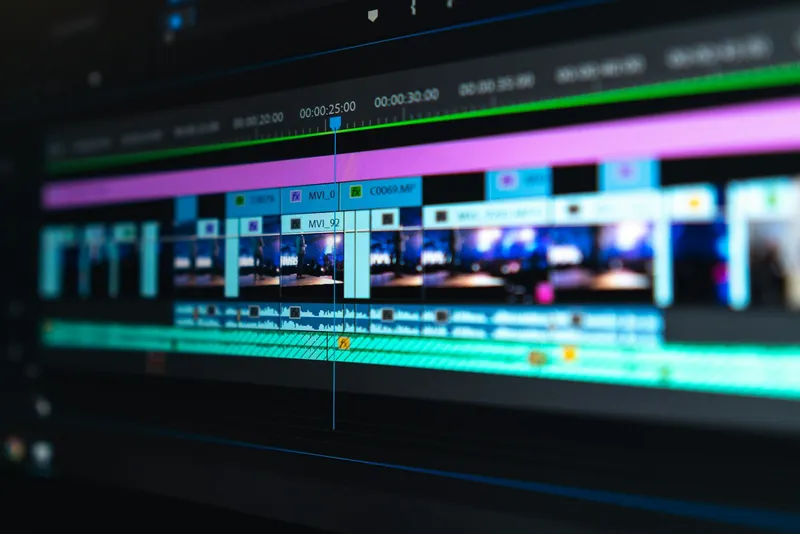
The honest answer to "which AI video editing tools actually work" is less exciting than the demos suggest — and more useful than the marketing would have you believe.
AI video editing in 2026 is split into two realities. The first is the demo reality: tools that generate Hollywood-quality footage from text prompts, clone your voice in seconds, and produce a polished video from a rough idea. The second is the production reality: tools that genuinely save you hours per week by handling the tedious parts — the parts that used to require either expensive software expertise or a junior editor you had to explain things to three times.
This article lives in the second reality. I've tested every major AI video tool over the past year — in real production environments, not sandbox demos — and I'll tell you exactly which ones have earned a permanent spot in a working creator's toolkit, which ones are getting close, and which ones are still mostly noise.
What AI Has Actually Changed in Video Editing
The biggest shift AI has made in video editing is not generation. It's reduction. Reduction of the repetitive, tedious, mechanical work that used to eat half your editing session.
Specifically:
- Auto-captions that are 95%+ accurate and require almost no manual correction
- Background noise removal that makes amateur audio sound like a studio recording
- Object removal that actually works on static shots without leaving artifacts
- Timeline cleanup that identifies and cuts dead air, filler words, and silent gaps automatically
None of these are magic. All of them save real time. The compounding effect of eliminating three or four of those manual steps from every project is significant — we're talking 2 to 4 hours per video for a typical 10-to-20-minute YouTube video or short documentary.
The generation side — text-to-video, AI B-roll, realistic avatar presenters — is advancing fast and is genuinely useful in specific contexts. But if you build your entire workflow around it today, you'll spend more time reviewing and fixing outputs than you would have spent shooting original footage. Keep that in mind.
CapCut: The Unsung Workhorse
CapCut gets dismissed by serious editors as a TikTok toy. That dismissal is a mistake.
CapCut's AI suite in 2026 is one of the most genuinely useful collections of video editing automation available — at any price point. And the free tier covers most of it.
Auto-captions. CapCut's speech recognition is among the best in the industry. In English, Spanish, and most major European languages, you're looking at 92–96% accuracy out of the box. The editing interface for caption correction is fast — click a word, fix it, move on. For social content where captions are effectively mandatory, this feature alone justifies using CapCut as part of your workflow.
Remove silence. The "remove silence" feature does exactly what it says with none of the fiddling of manual editing. Set a threshold, preview, apply. It's not perfect — sometimes it cuts breaths in a way that sounds abrupt — but it gets it right 85% of the time and is easy to correct the other 15%.
Background noise removal. Drag and drop your audio. Apply "denoise." The algorithm distinguishes between voice and background noise better than most $50-a-month standalone tools. If you're recording in a slightly noisy environment — a home office, a busy café — this turns acceptable audio into professional audio.
Smart cutout (background removal for video). For talking head content, CapCut's AI background removal handles hair edges, movement, and changing light with accuracy that has improved significantly in the past eighteen months. This is no longer a "good enough for social" feature. It's genuinely clean.
CapCut is not a toy. It's a production tool that happens to be free. The creators treating it as such are building a meaningful speed advantage over the ones who aren't.
Where it falls short: the template ecosystem is overwhelming and poorly organized, and the desktop app still lags behind the mobile version in some features. But for creators who want serious AI-powered editing without paying for Premiere or DaVinci, CapCut deserves a proper look.
Adobe Premiere Pro: AI as Infrastructure
Adobe's approach to AI in Premiere Pro has been, quietly, the most mature in the market. They haven't launched flashy generative features and called them revolutionary. They've embedded AI deeply into the existing workflow in a way that feels almost invisible — until you notice you haven't had to do the thing you used to hate doing.
Speech to Text and transcript-based editing. Adobe's speech-to-text engine produces transcript-based editing that is genuinely fast. You edit the transcript and the timeline updates. Delete a word from the transcript — the corresponding clip is removed. For documentary and interview content, this changes the shape of the entire editing workflow. An hour of interview footage that would normally take 3–4 hours to rough-cut takes closer to an hour.
Generative Extend. This is the Adobe AI feature that gets the least attention and deserves the most. Generative Extend lets you extend a clip beyond its original edges — AI generates new frames to fill the gap — which means you can fix an edit that ends half a second too early without going back to the original footage. For static or slow-moving shots, it works very well. For fast motion, it still struggles. But for A-roll interview content, it has saved me from re-recording sessions more than I'd like to admit.
Object removal. Adobe's implementation is solid for static objects in shots with minimal camera movement — microphone booms, power outlets, a water bottle someone left in frame. The 80% case is well covered. Complex moving objects against complex backgrounds are still a workflow-breaker, but that 80% is the vast majority of everyday production problems.
Auto Reframe. For resizing content across aspect ratios — 16:9 for YouTube, 9:16 for Reels, 1:1 for the feed — Auto Reframe uses AI to track subjects and keep them centered as it resizes. For talking head and interview content, it reduces what used to be a 2-hour task to about 10 minutes.
The catch: Adobe's pricing — $55+ a month for the full suite — means you're paying for these features whether or not they've matured yet. But if you're already in the Adobe ecosystem, there is genuinely no reason not to be using them.
Descript: The Paradigm Shift
Descript is not a video editor with AI features. It's a fundamentally different idea about what video editing should be — and for specific use cases, it's the most efficient tool in this entire article.
The core idea: your video is your transcript. You edit text. The video follows.
Cut a sentence from the transcript — the corresponding video is cut. Rearrange paragraphs — the video rearranges. Delete filler words from the transcript — they disappear from the timeline. Record a correction in a completely different take — Descript's Overdub AI generates new audio in your voice to cover the edit seamlessly.
Transcript-based editing. For talking head content, podcast recordings, and interviews, Descript's editing model is the fastest path from raw footage to first cut. Not marginally faster — categorically faster. An hour of interview footage that would take 3–4 hours to rough-cut in Premiere takes 45 minutes in Descript, because you're scanning text rather than scrubbing video.
Studio Sound. Descript's audio enhancement isolates voices, removes room noise, and applies EQ and compression automatically. The output is not quite "professional audio engineer did this" — but it's well past "this sounds like it was recorded in a kitchen," which is where most podcasters and YouTubers start. The gap between those two things used to cost thousands of dollars in equipment or editing time.
Overdub. Descript's voice cloning feature — you train it on your voice, then type words and it speaks them in your voice — is genuinely useful for small corrections. If you said "Wednesday" when you meant "Thursday," you fix it without a re-record. For longer insertions or emotionally varied content, the synthetic voice still sounds synthetic. But for factual corrections and short inserts, it's close enough to pass.
Descript changed how I think about the rough cut. Instead of watching footage, I read it. Instead of scrubbing a timeline, I edit a document. It sounds trivial. It is not trivial.
Where it falls short: Descript is not a finishing editor. Color grading, multi-cam, complex audio routing, motion graphics — you'll need to export and finish in Premiere or DaVinci. Think of it as the best first-cut tool available, not an end-to-end solution.
DaVinci Resolve: The Professional's AI Toolkit
DaVinci Resolve is a full post-production suite — color grading, audio mixing, visual effects, and editing all in one tool. The free version is, bafflingly, better than most paid alternatives. Blackmagic Design has been integrating AI into Resolve for several years, and the maturity shows.
Magic Mask. DaVinci's Magic Mask uses AI to isolate and track subjects frame by frame — faces, bodies, specific objects — automatically. The tracking accuracy for human subjects is exceptional. This unlocks color grading workflows that used to require roto artists: grade a subject's skin separately from the background, darken the edges of the frame without touching the subject, apply completely different color treatments to foreground versus background. For narrative and cinematic content, this is a meaningful creative unlock.
Voice Isolation. The Fairlight audio module includes Voice Isolation, which separates speech from non-speech audio with impressive accuracy. Drop it on a clip recorded on a street or at a live event and it isolates the voice while attenuating everything else. In extremely challenging conditions it still struggles, but for everyday difficult audio — a slightly echoey room, ambient traffic noise — it's the best built-in voice isolation in any video editor.
Speed Warp (AI slow motion). DaVinci's Speed Warp uses optical flow and machine learning to create slow motion from footage that wasn't shot at high frame rate. Feed it 30fps footage and ask it to play at 20% speed. Instead of choppy interpolation, you get a remarkably smooth result. For dramatic moments — a reaction shot, a product reveal, a sports highlight — this changes what's possible with ordinary camera gear.
Where it falls short: the learning curve is real. The AI features, while deep, are less accessible than CapCut or Descript — you need to know where to look and what to do with them. It rewards investment but punishes impatience.
Runway ML: Where It Gets Genuinely Wild
Runway is the tool you reach for when you need something that doesn't exist yet.
Gen-3 Alpha — Runway's text-to-video and image-to-video model — is the best publicly accessible video generation model in 2026. Not perfect. But genuinely useful for specific things.
AI B-roll. If you need a shot of "a scientist working in a lab" or "city traffic at night" or "close-up of hands typing on a keyboard" — footage that's generic enough that viewers won't question it — Runway can generate usable B-roll in 30 to 60 seconds. The motion is smooth, the aesthetic is consistent, and for cutaway shots lasting 3–5 seconds, it regularly produces results that pass a casual viewer without question.
Video-to-video style transfer. Upload a clip and apply a visual style — film grain, watercolor, a specific cinematic look — using Runway's video-to-video feature. For music videos, creative content, and stylized productions, this is a creative tool that simply didn't exist two years ago.
Inpainting and object removal. Runway's inpainting is competitive with Adobe's implementation, and in complex shots it sometimes does better. If Premiere can't cleanly remove something from a shot, Runway is a strong second option worth trying before you give up entirely.
What's still rough: any generated shot with faces in sustained motion. The uncanny valley is narrowing fast, but it's still visible on anything requiring performance or emotion. Runway is for environments and atmospherics, not characters. And at production volume, the cost adds up — reserve it for specific high-value shots, not routine B-roll.
What's Still Overhyped
Let's be direct about the things that are not ready yet, despite what the demos suggest.
Fully AI-generated talking heads. Tools like HeyGen and Synthesia produce AI presenters that are impressive in controlled conditions. In professional contexts where quality is expected — corporate video, brand content, YouTube at scale — viewers notice. The lip sync is slightly off. The blink patterns are wrong. The micro-expressions don't match the emotional content of the speech. For internal training content, FAQ videos, and contexts where efficiency genuinely matters more than polish, they work. For anything customer-facing, use a real human.
Voice cloning for full scripts. Cloning a voice for a short correction is useful. Using a cloned voice for a full 10-minute script is a different proposition — the performance is flat, the pacing is mechanical, the energy doesn't vary the way a real narrator's does. Most listeners will feel something is off even if they can't identify exactly what.
Real-time 4K upscaling. Multiple tools claim AI-powered 4K upscaling from HD footage. In practice, the results look sharp at a distance and artificial up close. For delivery to large screens or any context where people will scrutinize the image, real 4K footage is still the answer.
The Workflow That Actually Works
Here's the production workflow I've landed on after testing everything above. It's not one tool — it's the right tool at the right stage.
- First cut in Descript. Import raw footage, let it transcribe, edit the transcript — cut the fumbles, the digressions, the filler words. Export a rough cut. This is the fastest path from raw to structured.
- Primary edit in Premiere Pro. Import the Descript export. Use Speech to Text for caption generation. Use Generative Extend to fix any edits that feel abrupt. Use Auto Reframe to prepare multi-format versions for social.
- B-roll and inserts via Runway. Any B-roll you couldn't shoot, generate in Runway. Keep it to short cutaways. Don't use generated footage as the visual backbone of a story.
- Color and audio in DaVinci. Final pass for color grading and Voice Isolation on any audio that needs help. Export final delivery files.
- Social reformatting via CapCut. For quick social versions, CapCut handles reformatting, caption restyling, and thumbnail generation faster than Premiere.
The tools each do something no other tool does as well. The workflow is the skill — knowing which one to reach for and when.
The Honest Summary
AI video editing in 2026 is genuinely useful. Just not in the way the demos suggest.
It won't replace a director's eye or a cinematographer's craft. It won't turn a bad story into a good one. The gap between "generated by AI" and "shot by a human with intention" is still visible to anyone paying attention.
But it will take your raw footage and give you a polished first cut faster than any previous tool. It will fix the small technical problems — the noise, the filler words, the slight overruns — that used to require either skill or patience. And for specific tasks like B-roll, transcript editing, and multi-format repurposing, it will save you hours every single week.
In a world where content velocity matters and every creator is also a one-person production company, that's not a minor improvement. That's the entire margin.
Related, on HeyGen review: HeyGen review.
Related, on Sora 2 API sunset: Sora 2 API sunset.